

If you want to dynamically replace images, use image data binding.
- Keep the
.rivfiles tiny without potential bloat of larger assets - Dynamically load an asset for any reason, such as loading an image with a smaller resolution if the
.rivis running on a mobile device vs. an image of a larger resolution for desktop devices - Preload assets to have available immediately when displaying your
.riv - Use assets already bundled with your application, such as font files
- Sharing the same asset between multiple
.rivs
Methods for loading assets
There are currently three different ways to load assets for your Rive files. In the Rive editor select the desired asset from the Assets tab, and in the inspector choose the desired export option: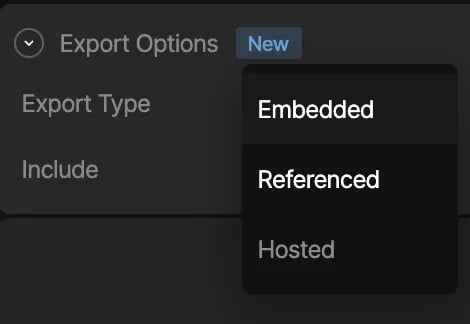
Embedded assets
In the Rive editor, static assets can be included in the.riv file, by choosing the “Embedded” export type. As stated in the beginning of this page, when the Rive file gets loaded, the runtime will implicitly attempt to load in the assets embedded in the .riv as well, and you don’t need to concern yourself with loading any assets manually.
Caveat: Embedded assets may bulk up the file size, especially when it comes to fonts when using Rive Text (Text Overview).
Embedded is the default option.
Image CDNs
Some image CDNs allow for on-the-fly image transformations, including resizing, cropping, and automatic format conversion based on the browser’s and device’s capabilities. These CDNs can host your Rive image assets. Note that for these CDNs, you may need to specify the accepted formats, for example, as part of the HTTP header request:Referenced assets
In the Rive editor, you can mark an imported asset as a “Referenced” export type, which means that when you export the.riv file, the asset will not be embedded in the file binary, and the responsibility of loading the asset will be handled by your application at runtime.
This option enables you to dynamically load in assets via a handler API when the runtime begins loading in the .riv file. This option is preferable if you have a need to dynamically load in a specific asset based on any kind of app/game logic, and especially if you want to keep the .riv file size small.
All referenced assets, including the .riv, will be bundled as a zip file when you export your animation.
Caveat: You will need to provide an asset handler API when loading in Rive which should do the work of loading in an asset yourself. See Handling Assets.
SVG assets can’t currently be loaded at runtime as referenced assets.This is because SVGs are converted to Rive vector objects, which are always embedded into the .riv.
Handling assets
- New Runtime
- Legacy Runtime
This section assumes that you have read through the Apple overview.Create your
Discovering and Loading File Assets
UseFile.getAssets() to discover a file’s assets, then decode and register replacements on its Worker. This replaces the legacy customLoader callback for out-of-band assets.A global asset applies to matching assets in that file and other files loaded by the same worker, including files loaded later. Register it using asset.uniqueName. You can register assets after creating the file, and register a new asset under the same unique name to replace it.Each File.Asset provides the following metadata:getAssets() includes embedded and referenced assets. Use the metadata to choose which assets your app supplies.1
Create a Worker and File
Load the file before querying its asset metadata. Call these APIs from a main-actor async context.
2
Choose and Load Assets
Iterate the file’s assets and use their metadata to locate their bytes. This example matches bundled resources using each asset’s
uniqueName and fileExtension, skipping unknown asset types and resources that are not bundled.3
Register Global Assets
Inside the loop, decode each asset with the worker and register it using
asset.uniqueName. The worker applies it to files using that unique name.Complete Example
This example loads bundled resources whose filenames match each asset’suniqueName plus its fileExtension (for example, picture-47982.jpeg). It skips assets without a matching bundled resource and leaves them unchanged.Rive and view from the returned file. You can also register replacements after displaying a file. Using the same unique name updates matching assets across files on that worker; use separate workers when those files need different replacements.Loading Hosted Assets
The new runtime does not automatically fetch hosted assets. For an asset withcdn metadata, fetch its bytes from baseURL with uuid appended as a path component, then decode and register it using the same global asset APIs.For example, inside an asset loop, load hosted images with: